
Reservations Page
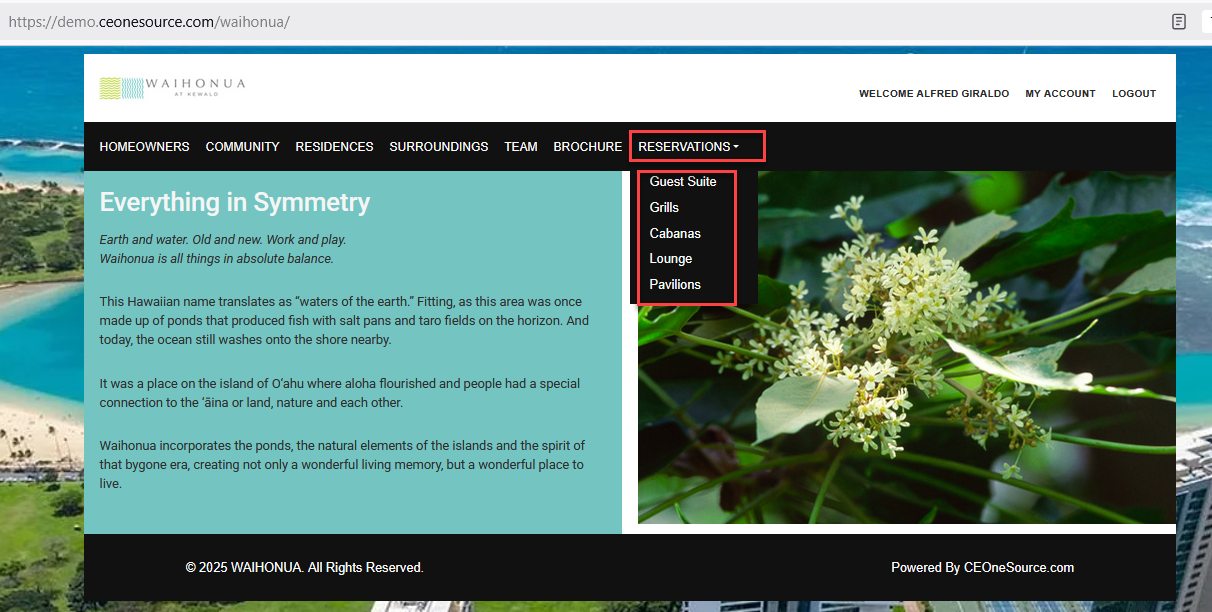
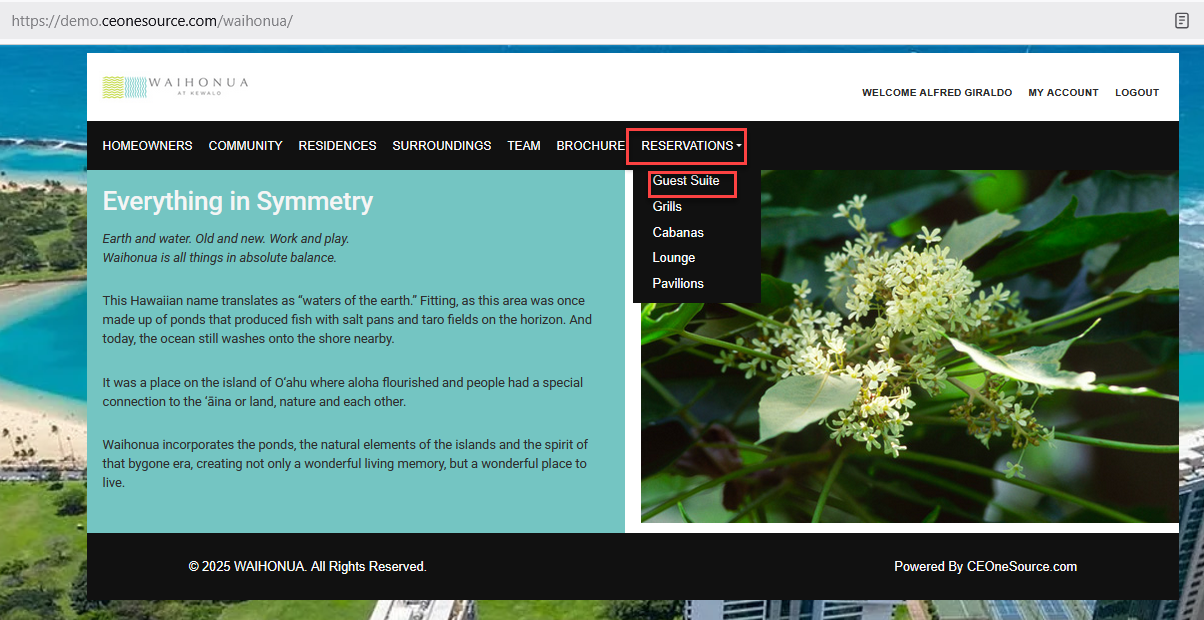
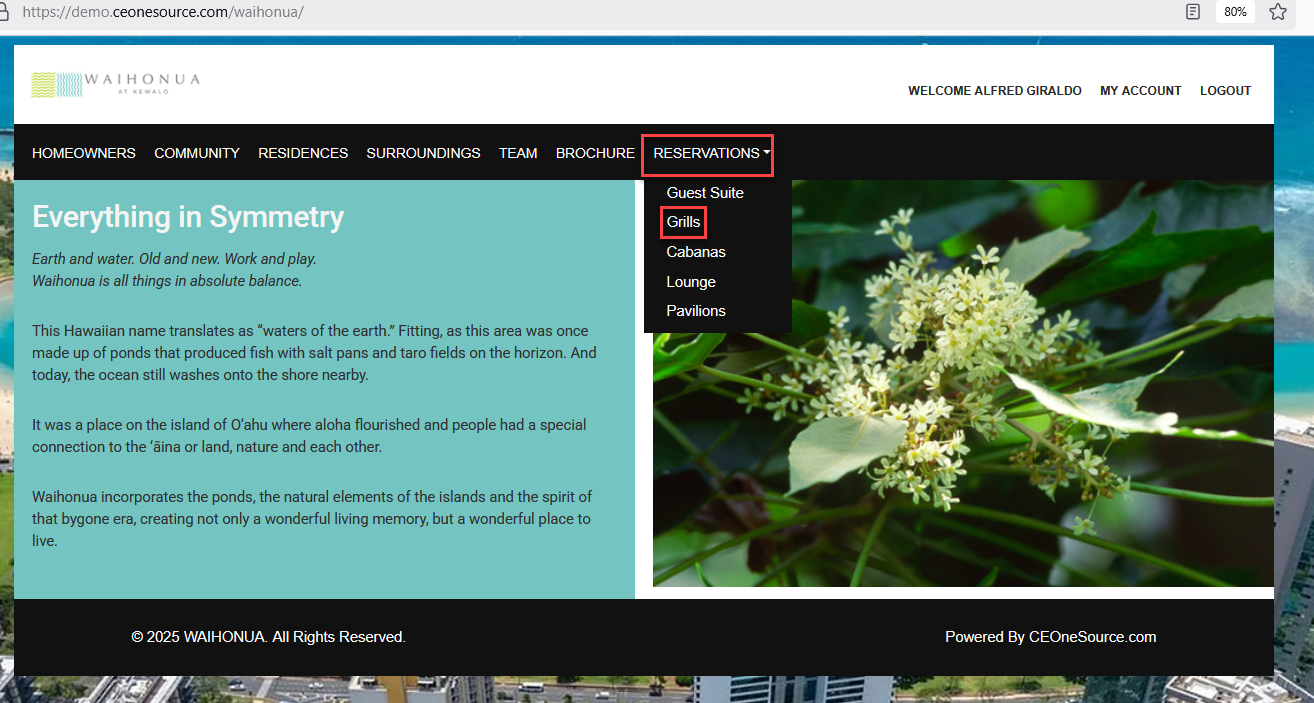
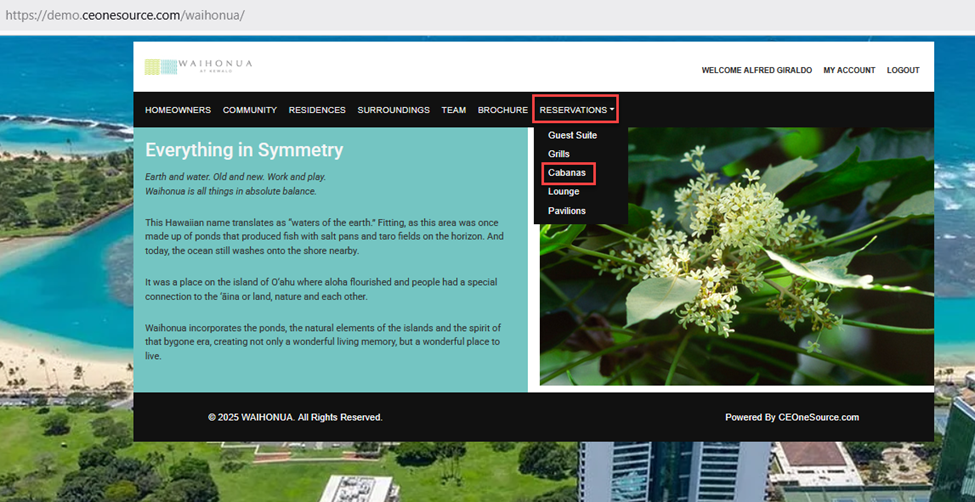
Within the "Reservation" section, the available options include the Guest Suite, Grills, Cabanas, Lounge, and Pavilions.
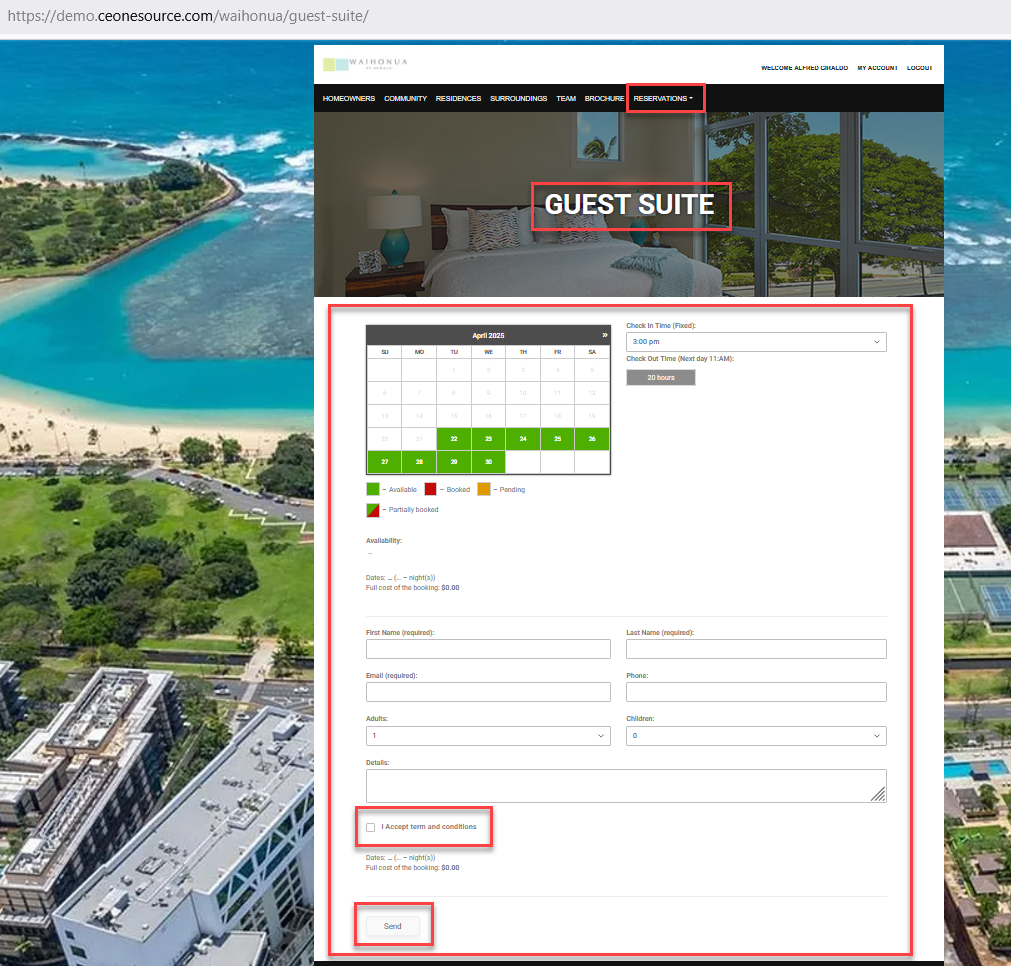
In the "Reservations" section, under "Guest Suite," you will see color-coded reservation statuses, including Available, Booked, Pending, and Partially Booked. The section also displays Availability, Dates, and the full cost of the booking. The Check-In Time is fixed, and there is a Check-Out button available. Additionally, you will be required to provide details such as First Name (optional), Last Name (required), Email (required), Phone, Adults, Children, and other relevant information. Once the necessary details are entered, check the box labeled "I accept the terms and conditions" and click "Send" to finalize and save the reservation.
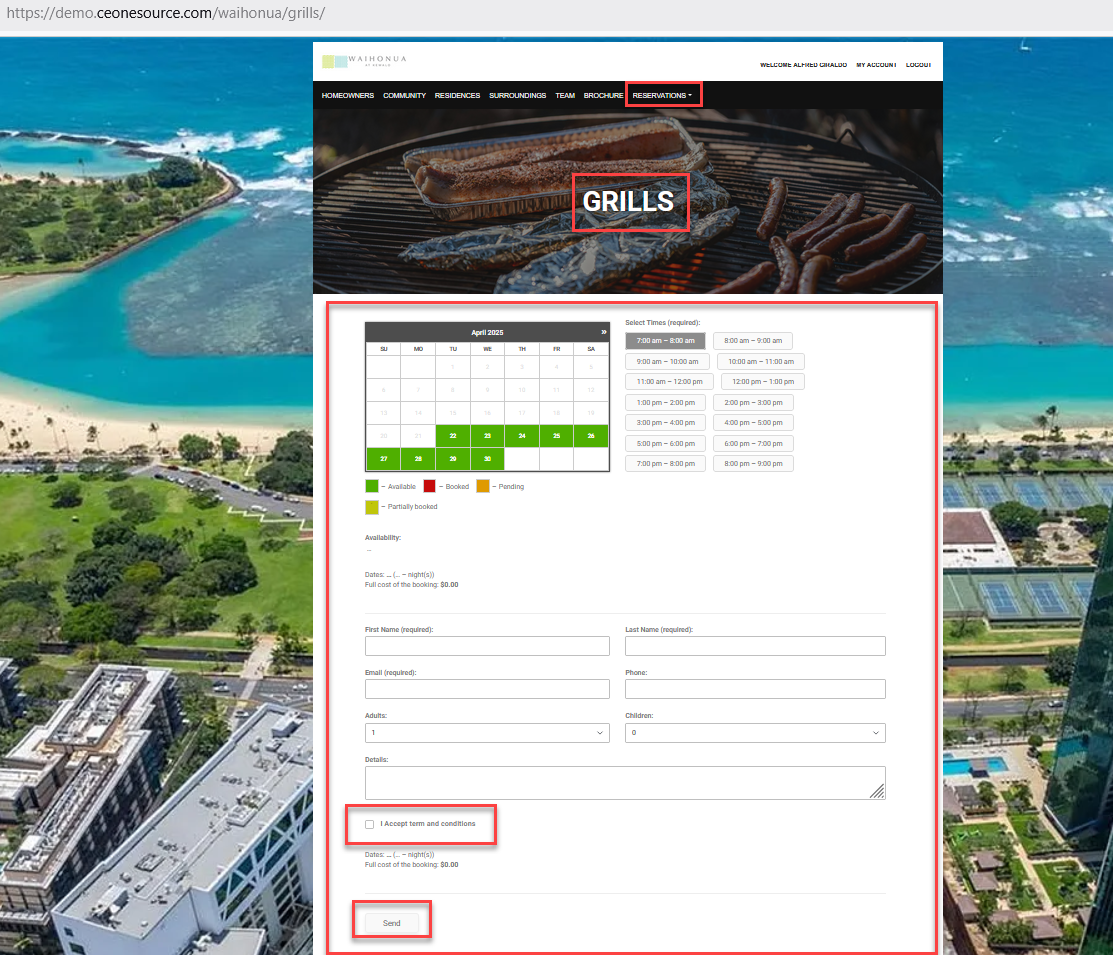
Within the "Reservations" section, the "Grills" tab displays color-coded reservation statuses, including Available, Booked, Pending, and Partially Booked. You will also see information regarding availability, selected dates, and the total booking cost. Guests are required to choose their desired check-in time. The form includes fields for First Name (optional), Last Name (required), Email (required), Phone Number, number of adults, number of Children, and additional details. After completing all necessary fields, you must check the box to agree to the "Terms and Conditions" and click "Send" to finalize and save your reservation.
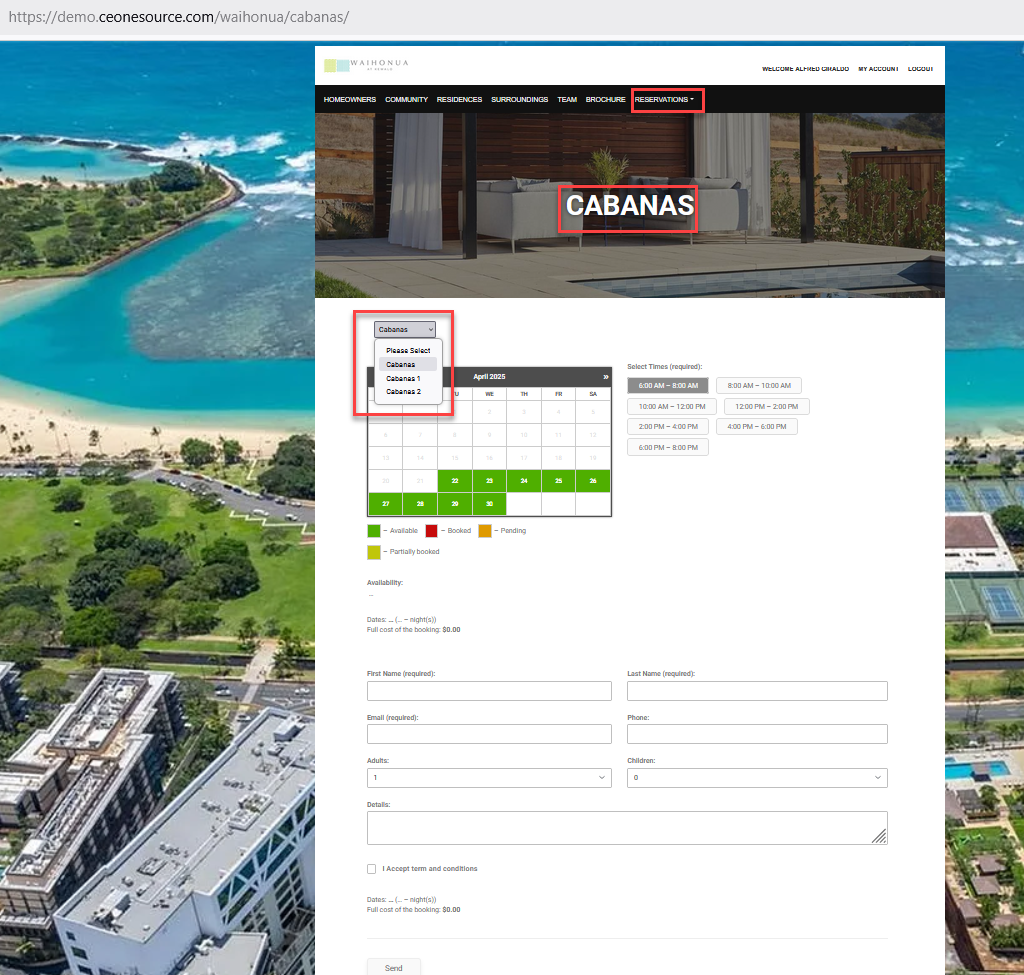
In the "Reservations" section, the "Cabanas" tab provides a clear, color-coded overview of reservation statuses—Available, Booked, Pending, and Partially Booked. It also displays availability, selected dates, and the total cost of the booking. Users are required to select their preferred time slot for cabana use. The reservation form includes fields for First Name (optional), Last Name (required), Email (required), Phone Number, number of Adults, number of Children, and any additional details. Once all required information is entered, simply check the box to accept the Terms and Conditions, then click "Send" to confirm and save your reservation.
Here,Here you need to select the Cabana you wish to book or reserve.
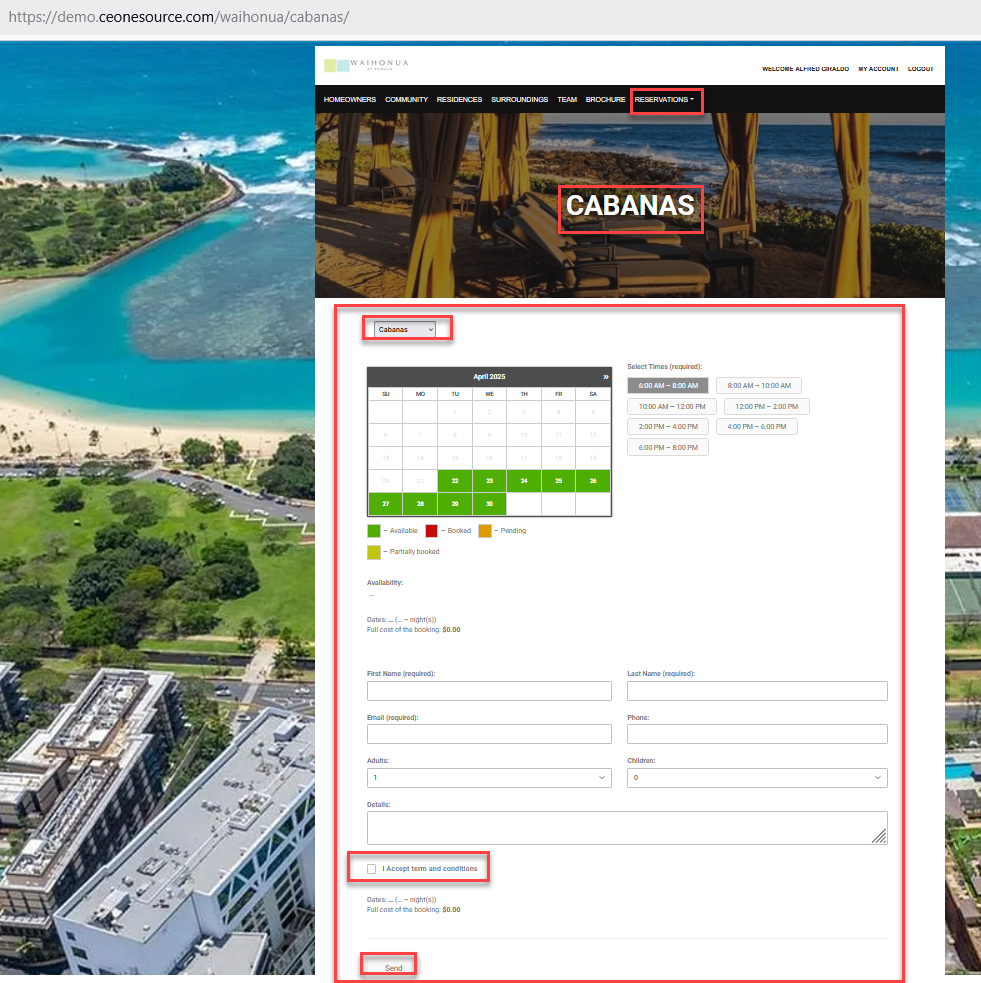
In
Pending,It
alsoavailability, selected dates, and the total cost of the booking. Users are required to select their desired check-in time. The reservation form includes fields for First Name (optional), Last Name (required), Email (required), Phone Number, number of Adults, number of Children, and any additional details. After filling in the necessary information, check the box to accept the Terms and Conditions and click "Send" to confirm and save your reservation.