
Amenity Settings
Amenity settings control how the resource behaves in the reservation system. These settings may vary depending on your implementation, but commonly include the following.
1. Amenity Title
The amenity name
2. Calendar Color (Hex) + Text Color
The background color and text color displayed in the calendar view.


3. Start and End Time
These define when the amenity is available to reserve.

4. Cleaning Buffer (Minutes)
Use for amenities that require buffers for cleaning.

5. Contact Booking Limit and Limit Period
Limits how many times a user can book within a set period. The settings below means that contacts can only book this amenity 3 times a week.

6. Maximum Expected People
Number of people the amenity can accommodate.

7. Allow Multiple Bookings At The Same Time
If an amenity allows multiple users to book together.

8. WaitList
Enable this to allow overlapping requests to be saved as a waitlist instead of being blocked.

9. Max Hours Per Booking
Set to 0 for no limit. Example: 4 means a booking can be at most 4 hours long.

10. Use Change Over Days
Enable overnight booking behavior. Requires check-in and check-out times.

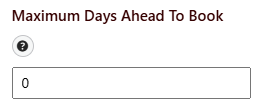
11. Maximum Days Ahead To Book
For standard bookings, 0 means same-day only. For change over day bookings, 0 means next-day checkout only.
Example: if the start date is 04/05/2026 and the Maximum Days Ahead to Book is 7, then the max allowed end date is 04/12/2026.
12. Date Range Display
Optional. Limit the booking date picker to the next X days from today. Example: 180 means users can only select dates within the next 180 days.

13. Next Booking Availability ( Amenity Specific )
Optional. Add a recovery gap in days after each booking before this amenity can be booked again. Example: 7 means the next booking can only start 7 days after the current booking ends.

14. Default Comments

15. Activity Triggers
Create activities and triggers email notifications.

16. Admin Notification Email
Admin notification emails. Select from email templates.

17. Additional Fields
Add custom fields for each amenity. Additional fields are populated on the booking form.

This little icon is your helper 